DoorDash Duplicate Photo Rejections: What Restaurant Owners Should Do
Do not reuse one menu photo across separate DoorDash items. See the exact rule, how Uber Eats and Grubhub differ, and the fastest fix.
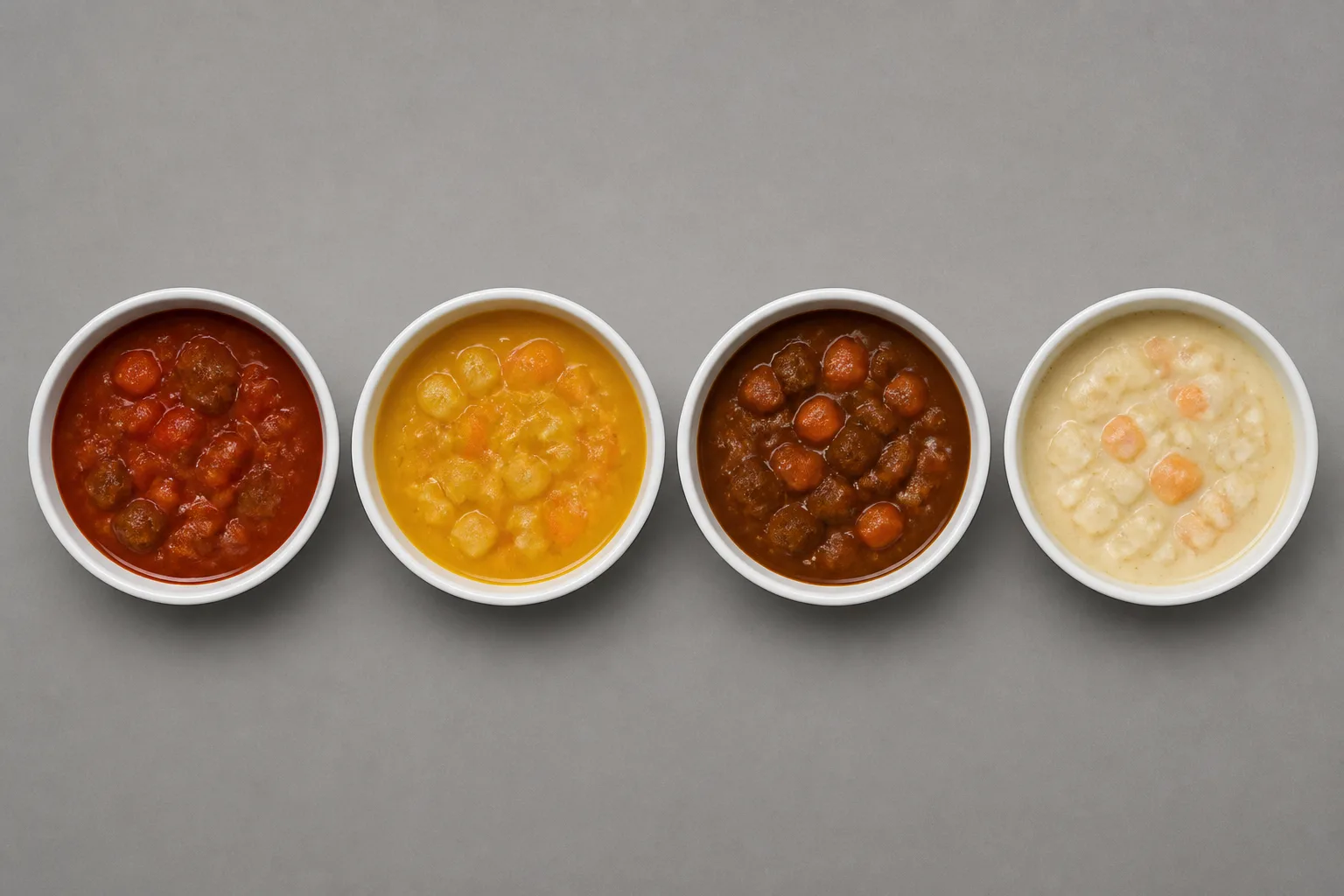
Do not reuse one photo across two different DoorDash items. Give each unique item its own file, even when the dishes look almost identical. Uber Eats and Grubhub do not publish the same duplicate-photo rule, so prepare your uploads by platform instead of forcing one photo plan onto all of them.
Do this before you upload
Build your shot list from DoorDash listings, not from recipes or prep batches.
The fastest decision rule
- If protein, flavor, or preparation changes between separate listings, photograph each listing separately.
- If customers choose variations inside one generic listing, one photo can represent that generic item.
- If a photo is already approved, do not upload that file again for another listing.
- Keep each shot honest. The photo must show exactly what the customer receives.
For the full crop and file checklist, keep our DoorDash photo requirements open while you upload.
What DoorDash actually rejects
DoorDash says, "Each unique menu item must have its own photo" and "Photos can be reused only if they represent the exact same item."
| Your menu setup | What to do on DoorDash |
|---|---|
| Beef Taco and Chicken Taco are separate listings | Use a different photo for each listing |
| Taco is one listing with variations inside it | One generic Taco photo can represent the listing |
| The same item appears in more than one place | Reuse is allowed only if the photo represents the exact same item |
| A file is already approved | Do not upload it again as a new photo |
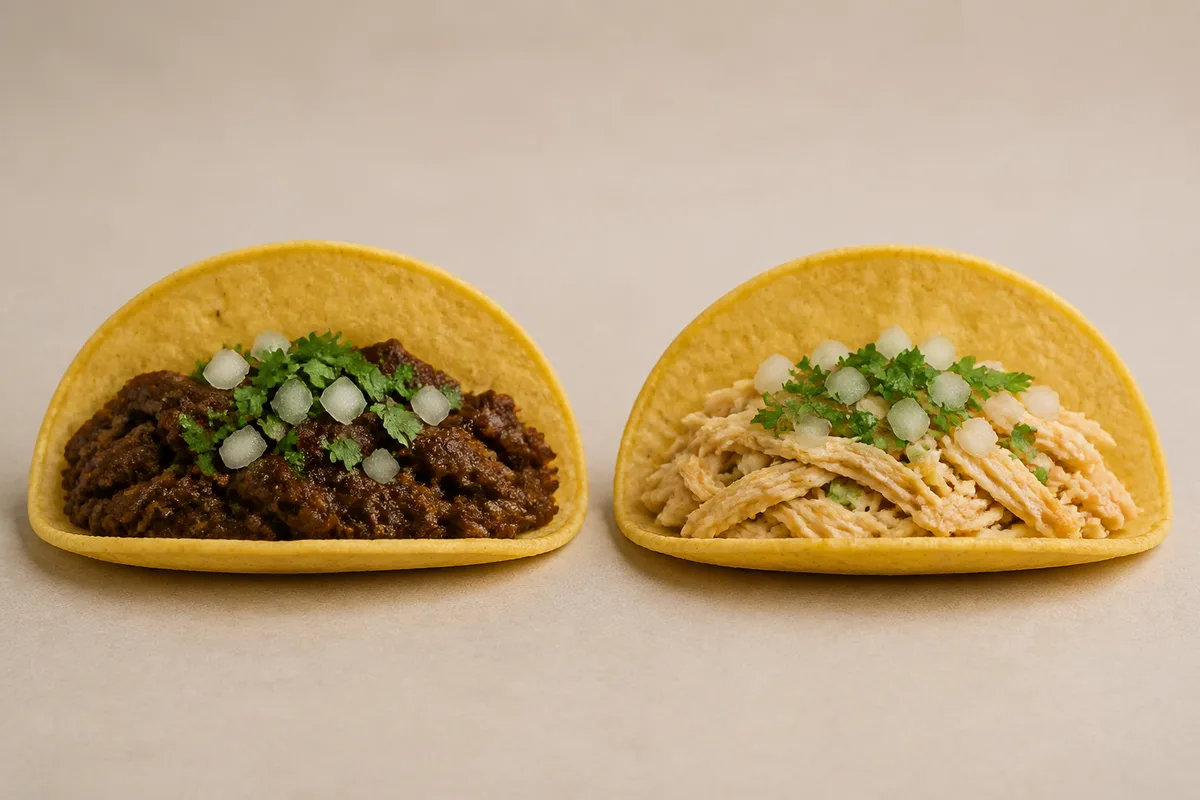
DoorDash draws the item boundary with three practical differences: protein, flavor, and preparation. Its own example says Beef Taco and Chicken Taco each need their own photo. Its exception is just as useful: a generic Taco can use one photo if the variations are not listed separately.
Similar-looking photos are not the same file
Our reading is that the rule governs photo reuse, not whether two honest photos happen to look alike. Photographing two similar dishes separately is safer than making one photo speak for both.
That does not permit cosmetic tricks. DoorDash also says the image must reflect the actual item served, and a photo may show multiple items only if they are sold together as a meal or bundle.
Uber Eats and Grubhub do not publish this rule
The word "duplicate" appears nowhere in either of Uber Eats' two official merchant photo guideline pages, and it appears nowhere in Grubhub's Menu Imagery Specifications.
| Platform | What its official rules say about reuse |
|---|---|
| DoorDash | Duplicate photos are a named rejection reason; each unique item needs its own photo |
| Uber Eats | Neither official merchant photo guideline page contains the word "duplicate" |
| Grubhub | Menu Imagery Specifications does not contain the word "duplicate" |
| Toast | Its image requirements contain no duplicate-photo or uniqueness rule |
This is a difference in written rules, not permission to mislead customers. Do not assume that a file accepted on one platform meets every other requirement on another.
What the other rules still require
Uber Eats requires a photo to accurately represent a single menu item. Its rule against showing more than one item controls what is inside one image, not whether separate listings share an image.
Grubhub's rejection section names body parts and copyrighted or stock imagery. Check format and crop separately with our Uber Eats photo requirements before submitting there.
If DoorDash rejects the photo
Replace the duplicate with a new photo for that item and upload it through Menu Manager.
Use the rejection reason, then resubmit
- Open Menu Manager in the Merchant Portal.
- Open the rejection notice at the top and choose View items.
- Open the affected item to read its reason.
- Choose Add new photo and submit the corrected file.
DoorDash sends an email explaining a rejection. Its current official photo pages contain neither a Request review button nor a promise that review takes one business day. Do not schedule a launch around either claim.
Uber Eats says its review can take up to 3 business days. That is an upper limit, not a promise that every review will take the full period.
If your POS sends the photos
Change the image URL as well as the file when your POS or menu integration supplies DoorDash photos.
Why replacing the file may not work
DoorDash maps each POS item to its PhotoURL. If the URL matches the previous menu update, DoorDash says it will not ingest a new photo. A fresh file at the old URL can therefore leave the old association in place.
Use a new public URL ending in JPG, JPEG, or PNG, without query parameters. On the manual approval path, DoorDash says its Photo team reviews the submission within 5 business days and emails the result.
Make sibling dishes visibly different
Put the real menu difference where it remains visible in a centered square thumbnail.
Change the food signal, not the truth
- Keep the lighting, plate, and camera angle consistent so the real ingredient difference becomes easier to see.
- Turn taco fillings, sandwich cuts, or sliced meats toward the camera.
- Let sauce color or visible protein distinguish similar curries instead of changing props for decoration.
- Remove a lid that hides the food, but leave it beside the vessel if it helps identify the dish.
- Compare neighboring menu thumbnails side by side before uploading.
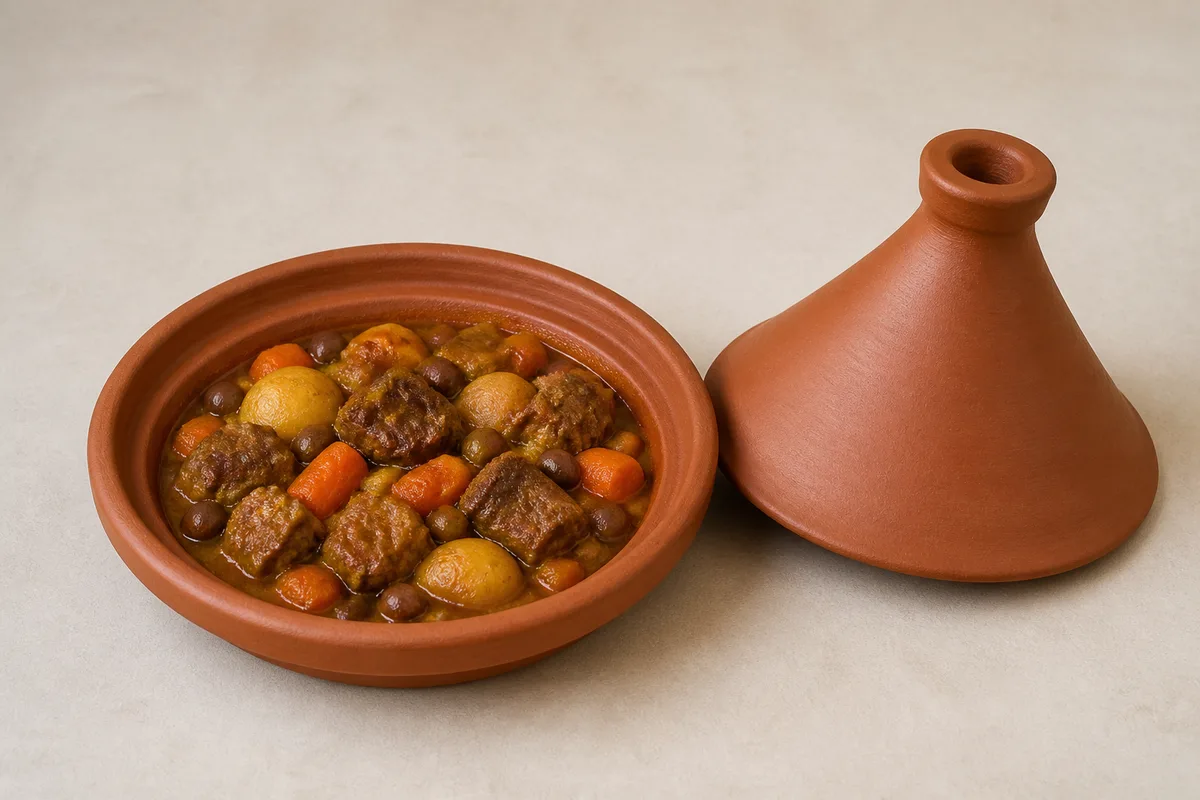
DoorDash accepts landscape item photos but displays menu thumbnails as centered squares. Check the square crop, because a difference near the outer edge may disappear. For recurring look-alike problems, see the practical examples in our Indian, Greek, and Moroccan restaurant photography guides.
Finish the menu without buying the wrong solution
Use a phone when you can reshoot the real dish, and use a separate image workflow only when you already have an accurate source photo.
Pick the smallest fix
- Need a genuinely new photo? Follow the phone food photography guide and shoot that listing.
- Have an accurate photo but need a platform-ready alternate composition? Review the AI food photography workflow, then verify that the output still matches the served item.
- Have one generic listing with variations? Keep one representative image instead of creating separate listings only to attach more photos.
The key is simple: DoorDash listings create the photo obligation. Fix the menu structure or make a separate honest image for each listing.
Sources
The platform documents below support the rules and workflow used in this guide.
- DoorDash, Common Photo Issues Explained, accessed 2026-08-25
- DoorDash, Photos Terms Glossary, accessed 2026-08-25
- DoorDash Developer, Integrated Images, accessed 2026-08-25
- DoorDash, Photos, accessed 2026-08-25
- Uber Eats, Store-Submitted Menu Photo Guidelines, accessed 2026-08-25
- Uber Eats, Merchant-Submitted Menu Catalog Photo Guidelines, accessed 2026-08-25
- Uber Eats, Adding Menu Photos FAQ, accessed 2026-08-23
- Grubhub Developer, Menu Imagery Specifications, accessed 2026-08-25
- Toast, Online Ordering Pro Menu Image Requirements, accessed 2026-08-25